
Cart widget
Give customers a way to choose their pickup point directly in the cart — before they reach checkout. The Globe cart widget adds a delivery selector to your cart page or cart drawer, so customers can pick between home delivery and a pickup point without ever leaving the cart.
How it works
Section titled “How it works”The widget adds two card-style options to your cart:
- Home delivery — the customer wants a standard delivery to their address. Selecting this clears any previously saved pickup point.
- Pickup points — the customer wants to collect from a pickup point. Clicking this card opens an interactive map and list, powered by Leaflet and OpenStreetMap (no Google Maps API key required).
From the map, customers can search by address, use their location, and browse markers for all nearby pickup points. Once they choose a point, the card updates to display the selected point’s name and address, along with a Change button.
The selection is saved to the cart and flows into the order automatically.
You can also turn on a third card, Local pickup, for orders collected in your store. See Local pickup.
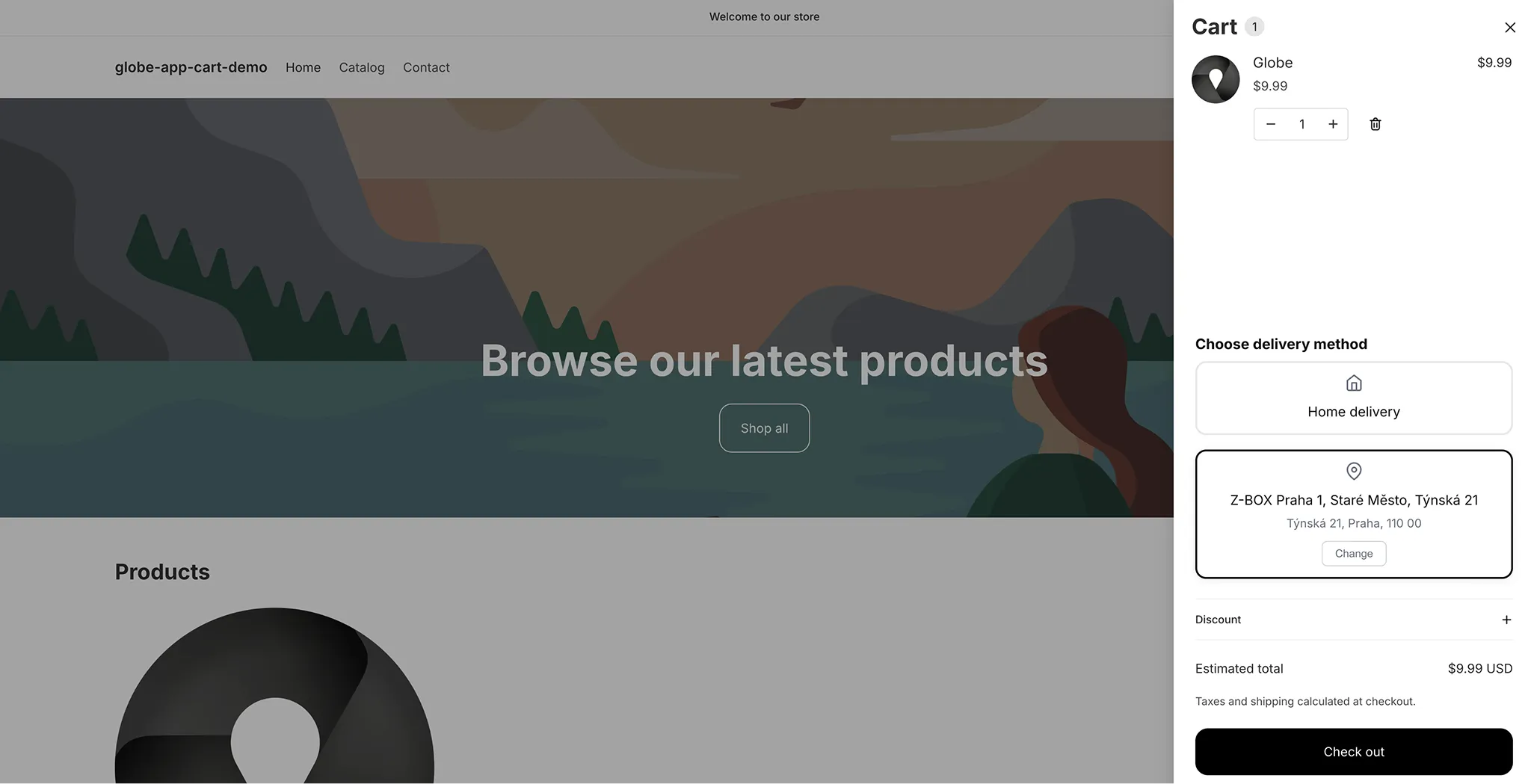 Customers choose between Home delivery and Pickup points directly in the cart.
-
Make sure at least one carrier is configured in Globe. See Adding pickup point carriers if you haven’t done this yet.
-
Enable the widget in your Shopify theme:
- In Shopify admin, go to Online Store → Themes → Customize.
- Open App embeds in the left panel.
- Find Cart pickup points and toggle it on.
- Click Save.
You can also reach the theme editor directly from Globe — go to Settings → Cart Widget and click Open theme editor.
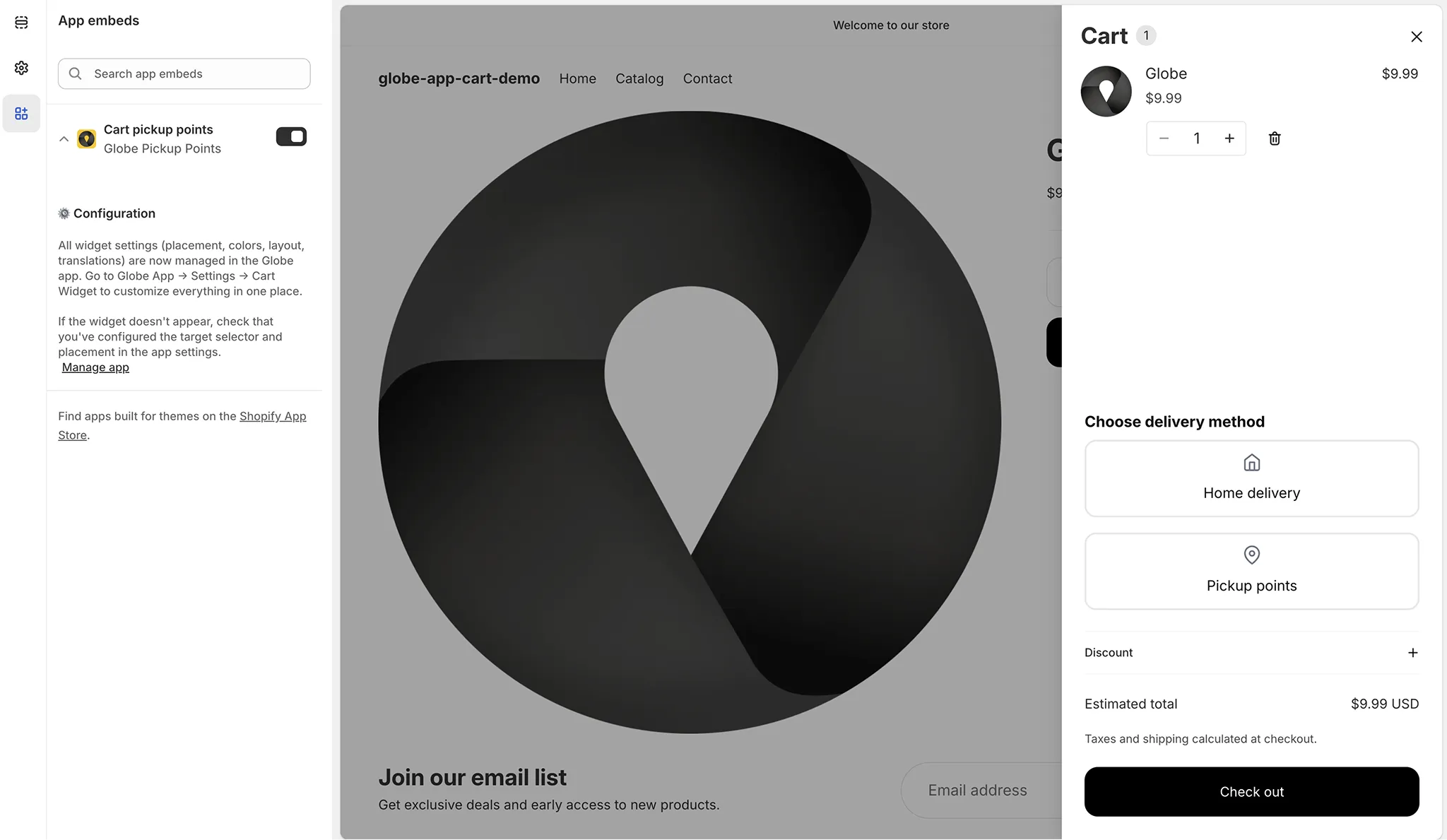 Enable the Cart pickup points app embed in your theme.
 -
In the Globe app, go to Settings → Cart Widget and configure the placement (see below).
Placement
Section titled “Placement”The widget injects itself into your cart at a CSS selector you specify. Different themes use different HTML structures, so you need to point the widget at the right element in your theme.
Common selectors:
| Theme type | Selector to try |
|---|---|
| Full cart page | .cart__footer |
| Cart drawer | .cart-drawer__summary |
| Generic | #cart-totals |
Not sure which selector your theme uses? Click Get help next to the CSS selector field in Globe — it walks you through how to find the right selector using your browser’s DevTools. You can also contact support and we’ll identify it for you.
You can add multiple placement targets if your theme has both a full cart page and a cart drawer — the widget will appear in both.
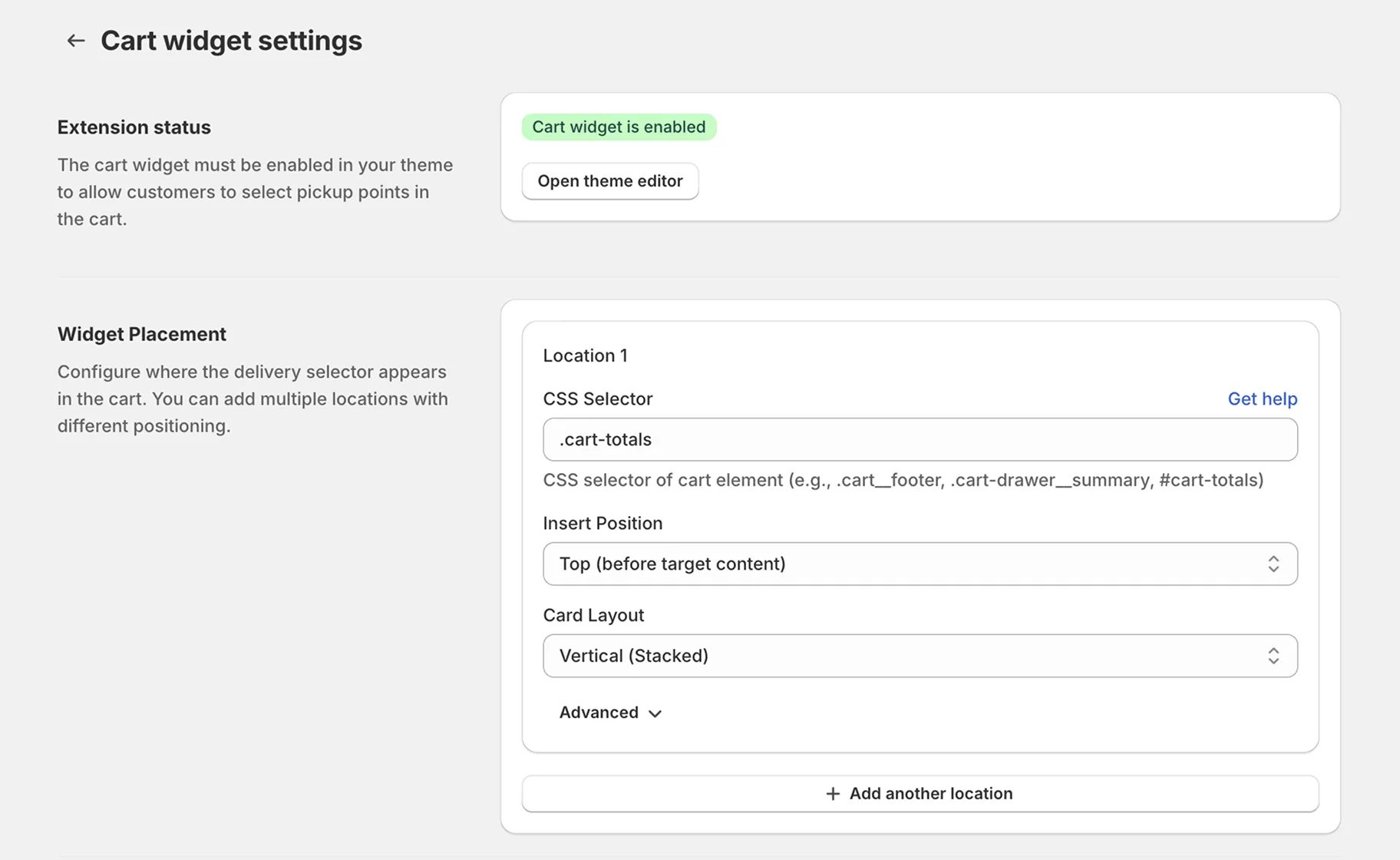 Configure the CSS selector and layout for each placement target.
Customisation
Section titled “Customisation”Translations
Customize the four labels customers see: the heading, “Home delivery”, “Pickup points”, and the “Change” button. Translations can be set per language — the widget automatically detects the customer’s browser language and shows the matching text. The app only shows languages that are published in your Shopify store.
Colors
Eight color settings let you match the widget to your store’s design: heading color, text color, card background, card border (normal), card border (selected), icon color, button background, and button text color.
Layout
Choose between horizontal (the two cards sit side by side) or vertical (the cards stack on top of each other). Horizontal works well on wide cart layouts; vertical is better suited for narrow cart drawers.
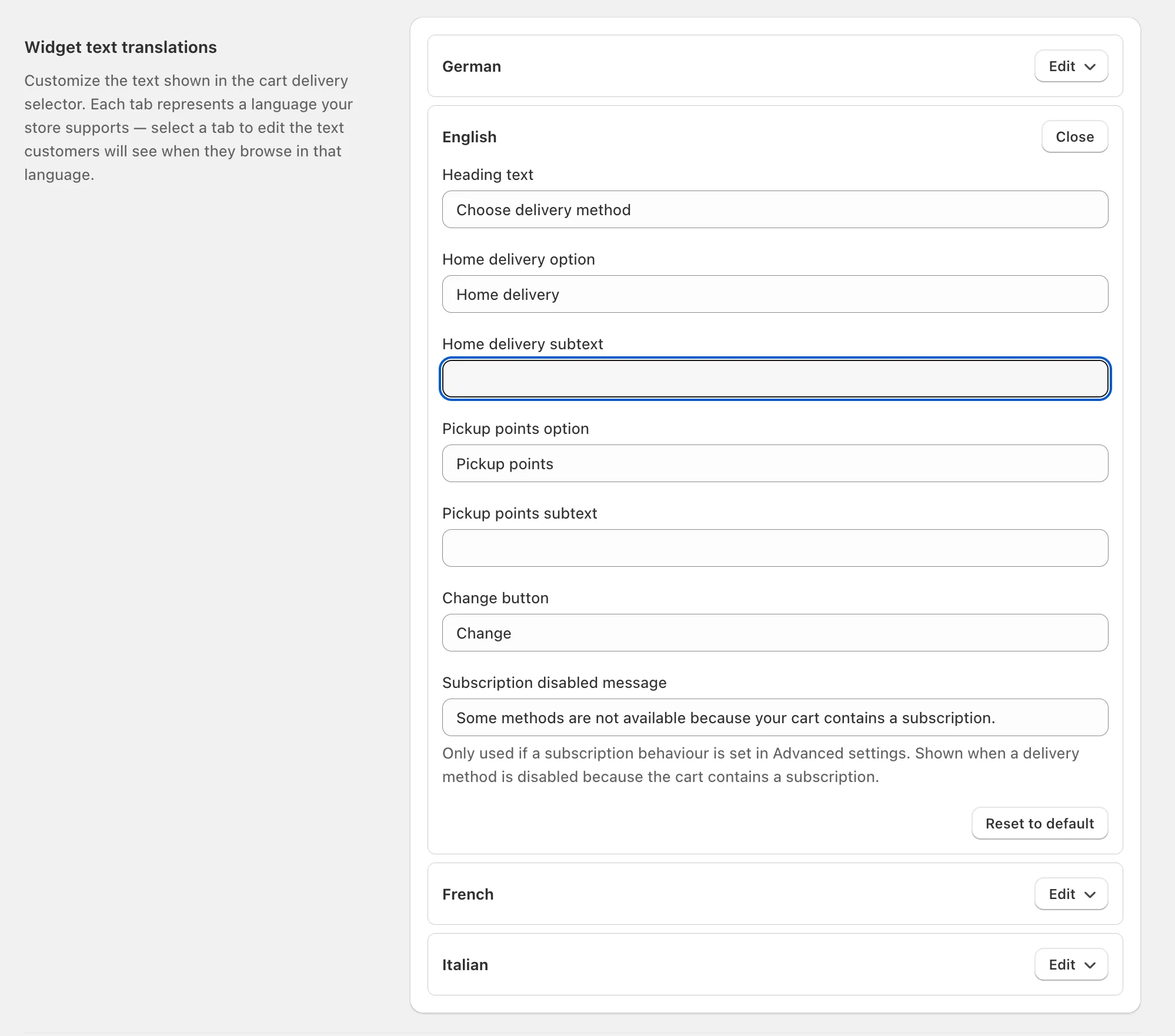 Widget text translations — customise the heading, option labels and subtexts per store language.
Checkout address prefill
Section titled “Checkout address prefill”When a customer selects a pickup point in the cart, Globe can automatically pre-fill the checkout shipping address form with that pickup point’s address. This saves the customer from re-entering the address and reduces friction.
Enable this in Settings → Cart Widget → Checkout address prefill.
If your theme uses a non-standard checkout button, enter the button’s CSS selector in the Custom checkout button selector field (supports multiple selectors separated by commas, e.g. .cart__checkout-button, #checkout).
Cash on delivery
Section titled “Cash on delivery”If you charge a COD fee through a separate shipping rate (e.g. “Packeta pickup point (COD)”), add your COD keywords under Settings → Cart Widget → Checkout delivery customization. Both the regular and the COD rate then stay visible for the selected point. See Cash on delivery at pickup points.
Local pickup
Section titled “Local pickup”If customers can collect orders in your store, the widget can show a third card, Local pickup, next to Home delivery and Pickup points. When the customer picks it, checkout opens straight on store pickup and the customer chooses the store there. If they then switch to Home delivery or a pickup point, checkout opens on shipping again.
The card is off by default.
Before you start
In Shopify admin, go to Settings → Shipping and delivery → Pickup in store. Checkout offers only locations with pickup turned on, an address filled in, and the items in stock (or available through a store transfer).
Turn it on
- In Globe, go to Settings → Cart Widget → Advanced settings.
- Tick Show local pickup.
- In Show only in these countries, pick the countries where you have a store. Leave it empty to show the card everywhere.
- Click Save.
If Globe shows a warning about permissions, open Globe from your Shopify admin and accept the update. Until then the card stays hidden.
Countries
The widget decides the country the same way as for pickup points: by the storefront’s market, or by the country the storefront language is mapped to. Pick only countries where you have a store. Otherwise a customer there gets store pickup in checkout with no store to choose.
Card text
Set the card’s title and subtitle per language in Widget text translations, next to the texts of the other cards. The default title is Local pickup in the customer’s language. You can change it, for example to Pickup at our Leeds store.
Limits
- Customers outside the selected countries don’t see the card.
- Express buttons in the cart (Apple Pay, Shop Pay) skip the choice made in the widget.
- If you turn pickup off in Shopify, checkout opens on shipping. The widget can’t tell, so turn off Show local pickup as well.
Prerequisites
Section titled “Prerequisites”- Globe app installed with an active subscription
- At least one pickup point carrier configured in Globe
- The Cart pickup points app embed toggled on in your theme editor