
Checkout Shipping (CCS)
Show pickup points as individual shipping rates directly in the Shopify checkout. Each nearby pickup point appears as a selectable option, sorted by distance — no map, no extra steps.
Availability
Section titled “Availability”| Plan | Monthly | Annual |
|---|---|---|
| Shopify Advanced | Included | Included |
| Shopify (Grow) | Available as a paid add-on | Included |
| Other plans | Not available | Not available |
Step 1 — Enable CCS in Globe
Section titled “Step 1 — Enable CCS in Globe”Go to Settings → Checkout Shipping (CCS), turn on Enable Carrier Calculated Shipping, and save. Globe registers the carrier rate with Shopify automatically.
Step 2 — Configure your Shopify shipping rates
Section titled “Step 2 — Configure your Shopify shipping rates”Set up shipping rates for each carrier in Shopify Admin → Settings → Shipping and delivery. You can set a flat price, free shipping above a certain order value, or weight-based pricing — exactly as you would for any shipping method.
Once configured, open the carrier in Globe (Pickup Points → carrier name → CCS section), enable CCS, and click Sync prices from Shopify. Globe reads all your configured rates and conditions automatically.
Step 3 — Repeat for each carrier
Section titled “Step 3 — Repeat for each carrier”Enable CCS and sync prices for every carrier you want to appear at checkout.
What customers see
Section titled “What customers see”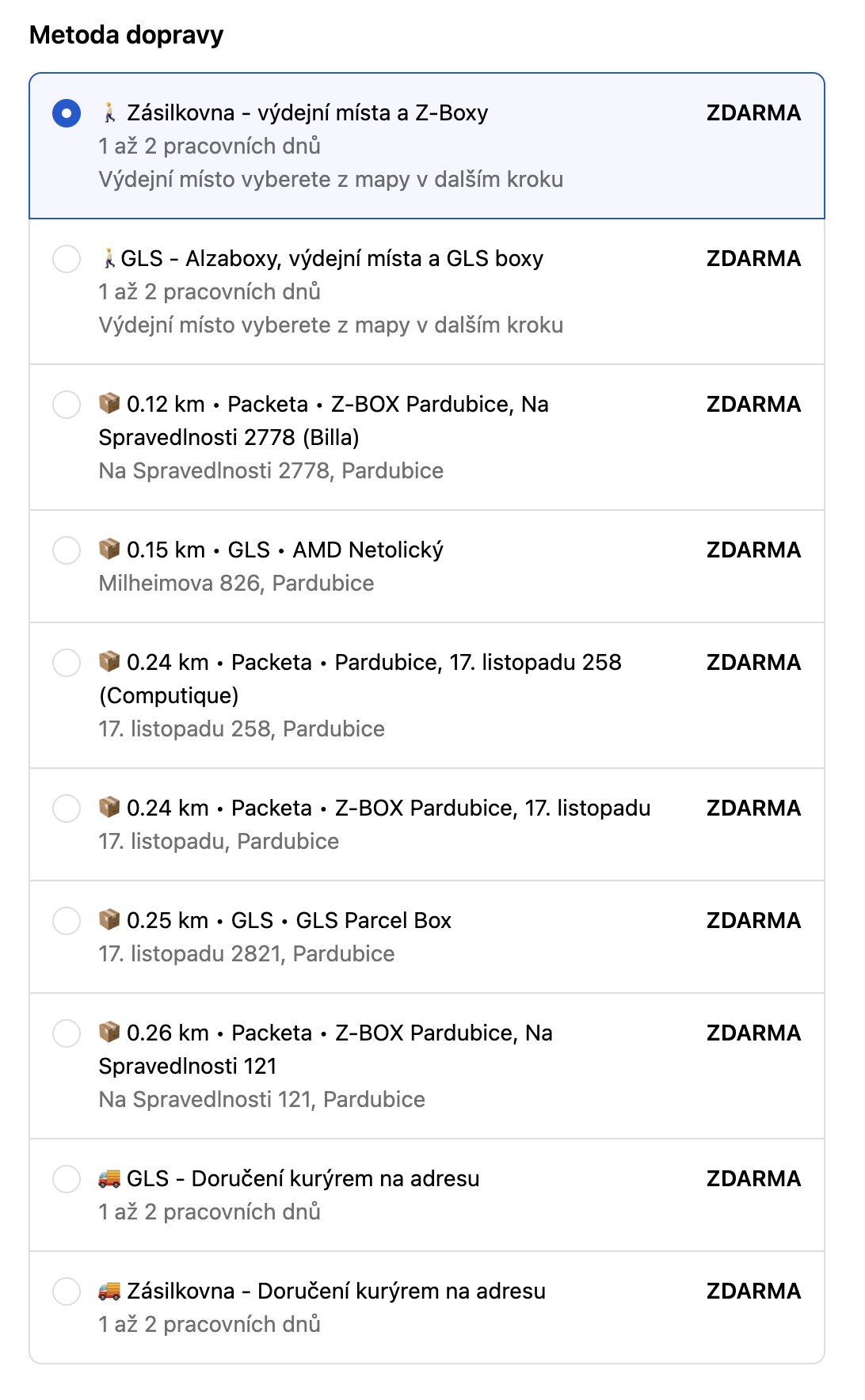
Each pickup point appears as a separate shipping rate, sorted nearest first. The label and description are fully customizable — see Checkout appearance below.
Checkout appearance
Section titled “Checkout appearance”You can change how pickup points are labelled in checkout under Settings → Checkout Shipping (CCS) → Checkout appearance.
The default format is:
📦 0.4 km • Zásilkovna • Z-BOX Pardubice, Poděbradská 384Available template variables: {{ point.distance }}, {{ point.provider }}, {{ point.name }}, {{ point.place }}, {{ point.address }}, {{ point.street }}, {{ point.city }}, {{ point.zip }}, {{ point.country }}
The description field can be left empty if you don’t want a second line.
Limitations
Section titled “Limitations”- Not all carriers support CCS. Incompatible carriers are marked in Globe.
- Shopify Plus stores should use the Checkout App Block instead — CCS is disabled for Plus stores.
- Keyword-based shipping methods are not supported for pricing sync. Use explicitly named methods in Shopify.
- Cash on delivery with a COD fee is not supported. A second COD rate for each pickup point isn’t possible. See Cash on delivery at pickup points.
Requesting CCS activation (Grow plan)
Section titled “Requesting CCS activation (Grow plan)”On the Shopify (Grow) annual plan, CCS may need to be activated by Shopify Support. Send them this message:
Subject: Enable Carrier Calculated Shipping
Hi, please enable Carrier Calculated Shipping (CCS) for my store [your-store.myshopify.com]. I’m on the Shopify Grow annual plan.
Troubleshooting
Section titled “Troubleshooting”No pickup points appear
- CCS is enabled in Settings and on the carrier.
- Prices have been synced (click Sync prices from Shopify on the carrier settings page).
- Your Shopify plan supports CCS.
Rates appear but price is wrong
- Re-sync prices after changing your Shopify shipping rates.